
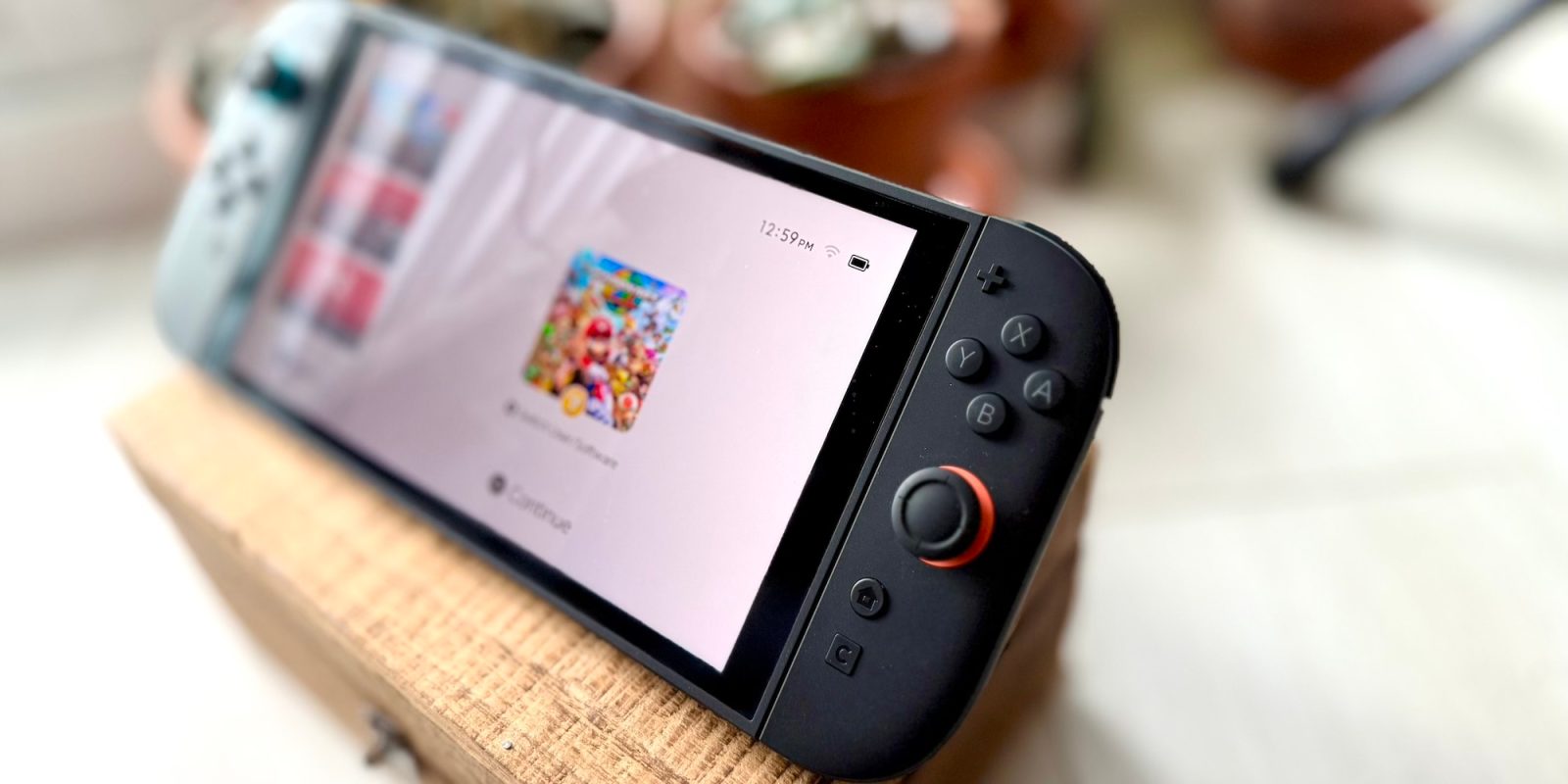
In our continued efforts to ensure your Switch 2 experience is a smooth one, today we are touching on the “Battery Charge Indicator” issue Nintendo has identified. Over on the official support page for Switch 2, Nintendo is suggesting that some Switch 2 console units are experiencing some minor issues with regards to the “Battery Charge Indicator or Percentage Displays” – here’s how to fix it.
While clearly not a major issue, it can certainly be helpful to actually know how much battery power you have left while in the middle of a gaming session or getting ready to head out the door, jumping on a flight, and so forth.
There is apparently an issue with the battery charge indicator on Switch 2 incorrectly displaying how much juice is actually left in the tank, and Nintendo has now issued some official steps on how to fix it.
For example, you are able to continue using your Nintendo Switch 2 console for a few hours even though the battery charge indicator displays the battery is almost depleted.
Note: “Nintendo Switch 2 consoles take approximately three hours to fully charge when the console is powered off or in sleep mode. The battery life is approximately 2.5 to 6.5 hours when fully charged.”
Here’s how to fix it, according to the Nintendo support page:
Complete these steps
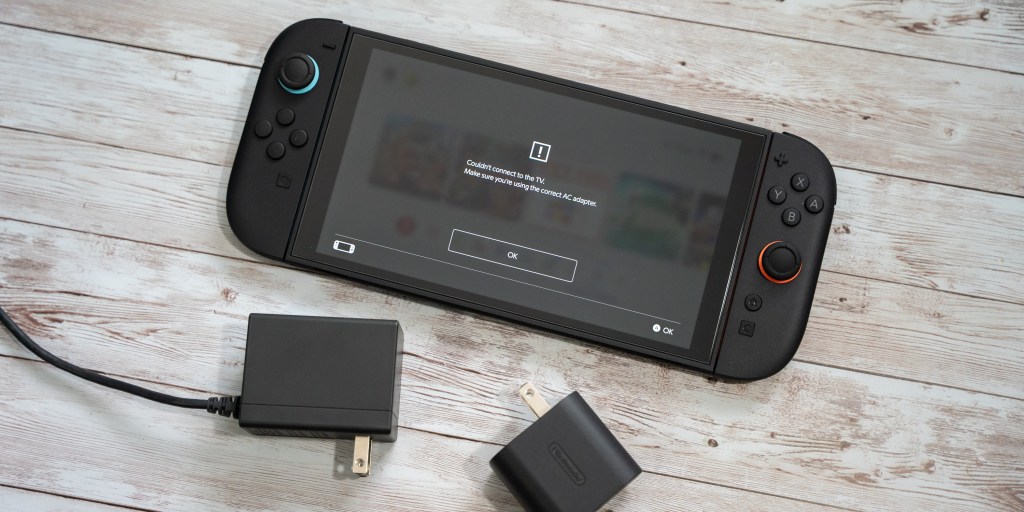
- Confirm that you’re using an adequately powerful AC adapter to charge your console.
- The Nintendo Switch AC adapter (Model HAC-002) can be used to charge the Nintendo Switch 2 when plugged into the console directly. Due to power output differences, it cannot be used to charge the Nintendo Switch 2 when docked.
- Confirm that your console has the latest system update.
- How to perform a system update on Nintendo Switch 2
- Power off the console.
- How to power off a Nintendo Switch 2 console
- Press and hold down the volume up (+) and volume down (-) buttons, press the POWER Button once to turn the system on.
- Keep holding down the volume buttons until the menu for Recovery Mode appears. Navigating to this menu should reset the battery level meter.
- Power off the console again by pressing and holding the POWER Button until it turns off.
- Power the console back on and monitor the situation.
If, after trying these steps “multiple times,” the situation has not resolved, Nintendo unfortunately suggests you send the console in for service and “provides a quick and easy-to-use online repair process” vis this link.
Has anyone had these issues just yet? So far, so good on my end.
More curated coverage for you





FTC: We use income earning auto affiliate links. More.



Comments