
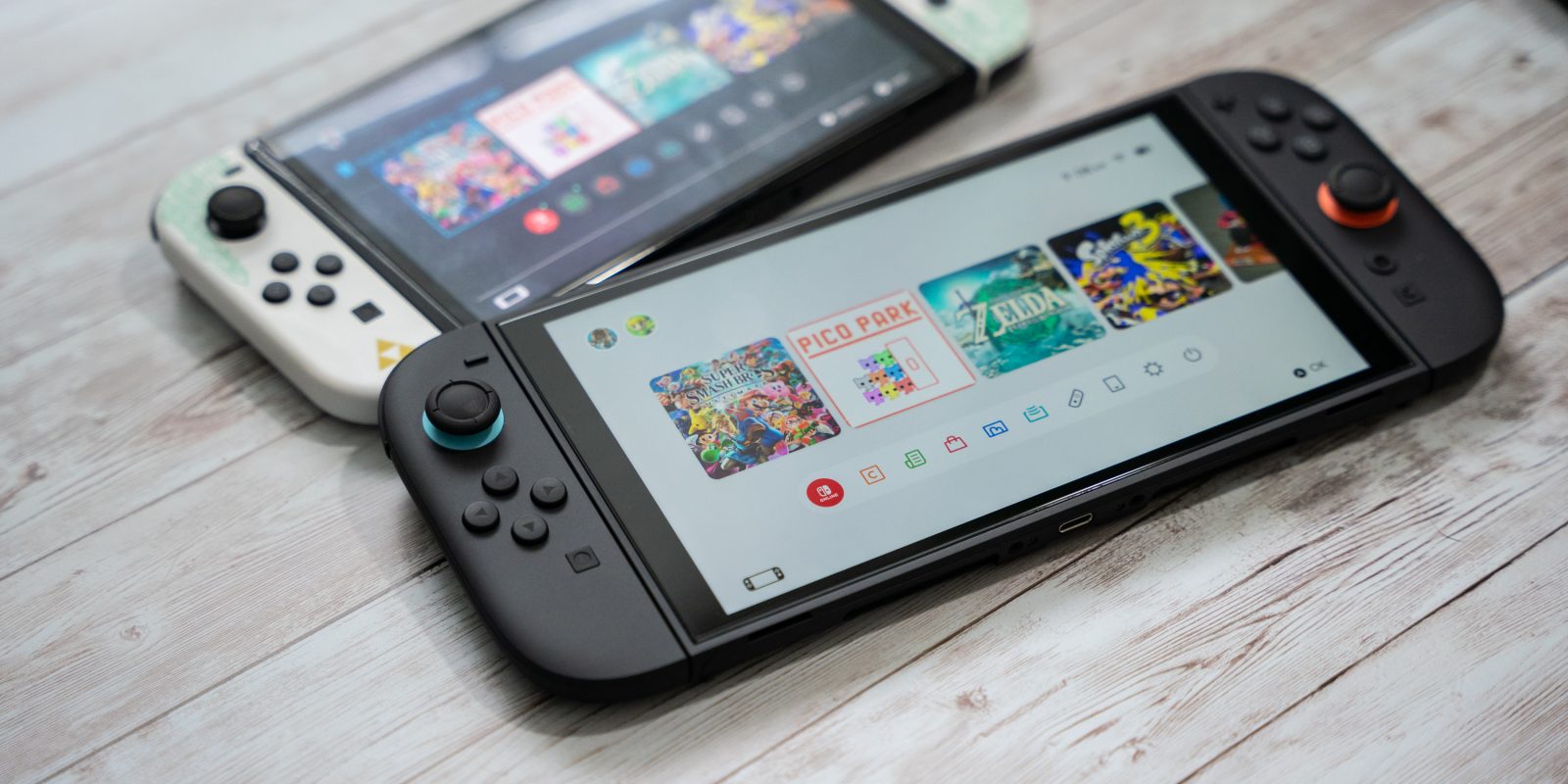
The Nintendo Switch 2 is here and, for many, that means upgrading from a past device. If you want to treat Switch 2 as your primary console, though, you’ll need to ensure it is set that way. Nintendo doesn’t make this process particularly straightforward, though, so here’s a quick breakdown of how to set Nintendo Switch 2 as your primary console.
What is a ‘primary’ Nintendo Switch console?
In Nintendo’s eyes, your “primary” Nintendo Switch is the one where effectively everything stems from. Your Virtual Games Cards, passes, and more will all primarily come from this system. If the Switch you’re using isn’t the primary, then you might have to jump through an extra hoop or two while playing games or performing certain tasks.
For example, only your primary Switch can play games offline as some users have learned the hard way.
So what is your primary Switch?
That’s likely whatever Switch you set up first with your account, whether that be the original Switch, the Lite, or the OLED. If you had more than one Switch, your primary may still be that first one even if you performed a system transfer, assuming that you held on to that previous device.
How to set Nintendo Switch 2 as your primary console
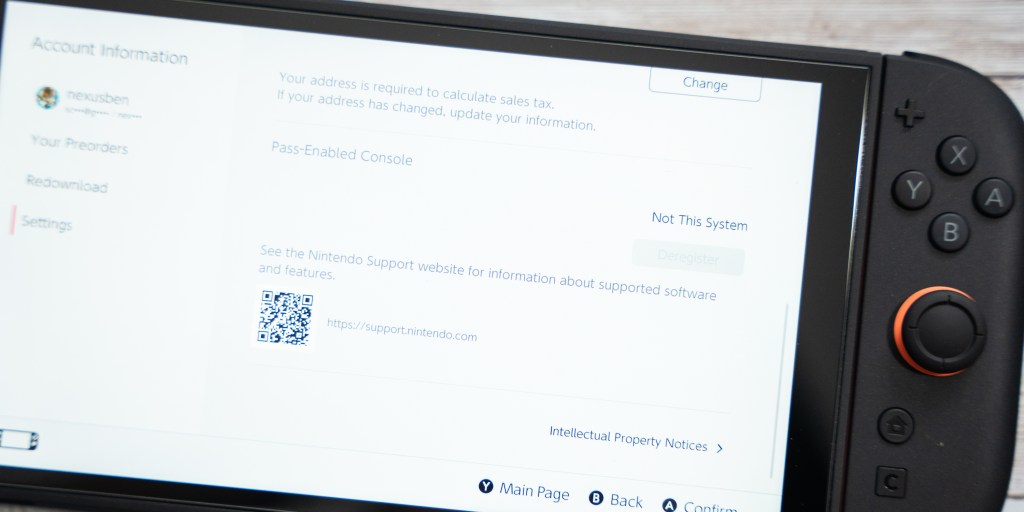
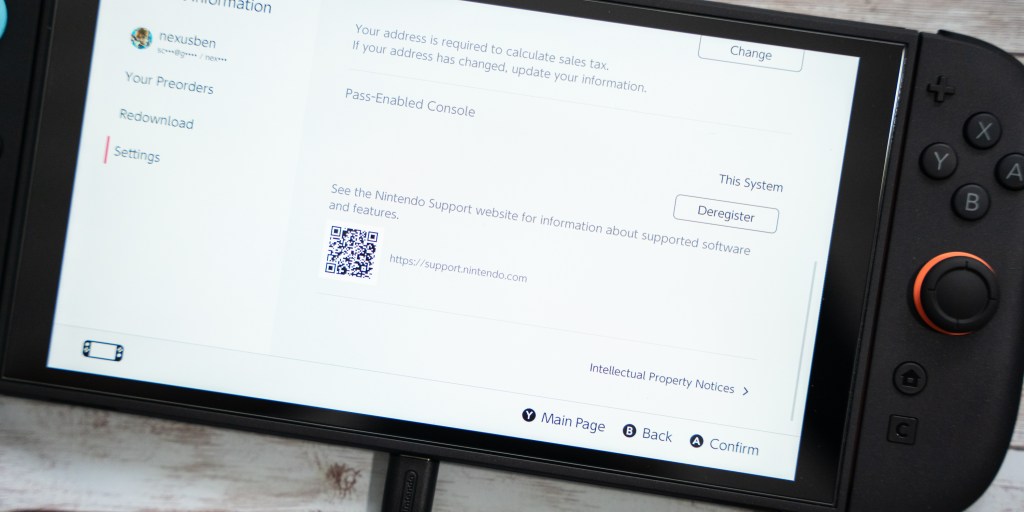
To move from one Switch to Nintendo Switch 2 and make the new device your primary console, what you’ll need to do first is verify that Switch 2 isn’t already set as the primary. You’ll do this via the Nintendo eShop by tapping on your profile image in the top corner, going to “Settings,” and looking for “Pass-Enabled Console” at the bottom of the page. You’ll either see “This System,” meaning it is your primary system, or “Not This System,” confirming something else is set as your primary console.
To move from one to the other, you’ll need to track down whatever Switch is your primary system.
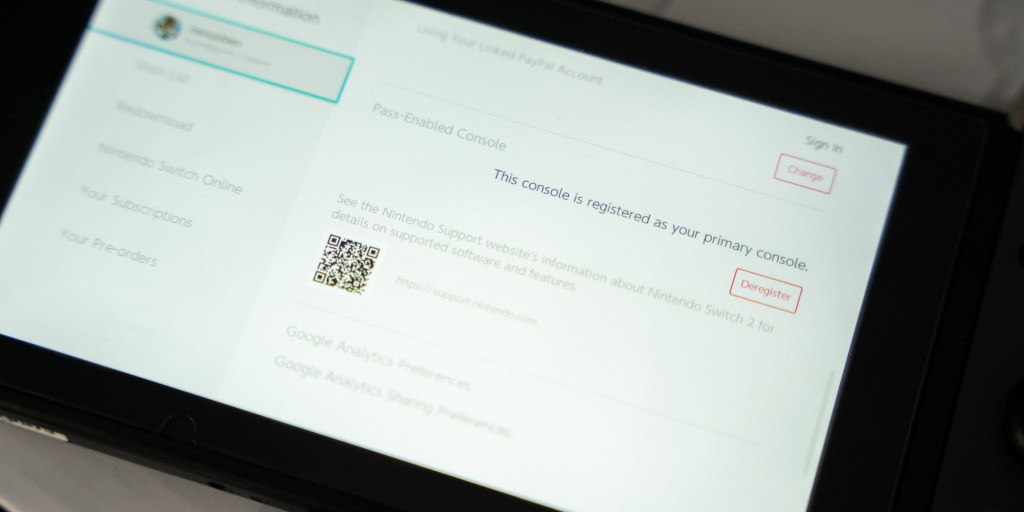
You’ll repeat the same process to verify which system is your primary, and when you find it there will be a “Deregister” button. Nintendo will prompt you to verify your login details and, after that, you’ll see a message that the “next” system you log in to the eShop with will become your primary system.

That’s when you’ll head back to your Switch 2 and open the eShop. From there, you can go back in and verify that Nintendo has reassigned your primary system.
Again, this process may be done on its own when you transfer your data from an existing Switch if that was already your primary console, but Nintendo doesn’t directly explain how to do all of this if it’s not done automatically.
Happy Switch 2 day everyone!
More on Nintendo Switch 2:
- All of the Nintendo Switch 2 games still in-stock from $40 for launch day
- Nintendo Switch 2 is here: Unboxing and first impressions [Hands-on & Video]
- PSA: There’s a mandatory update for Nintendo Switch 2 out of the box
- Nintendo Switch 2 has a major AC Adapter upgrade, and you can’t use the original one anymore


FTC: We use income earning auto affiliate links. More.




Comments